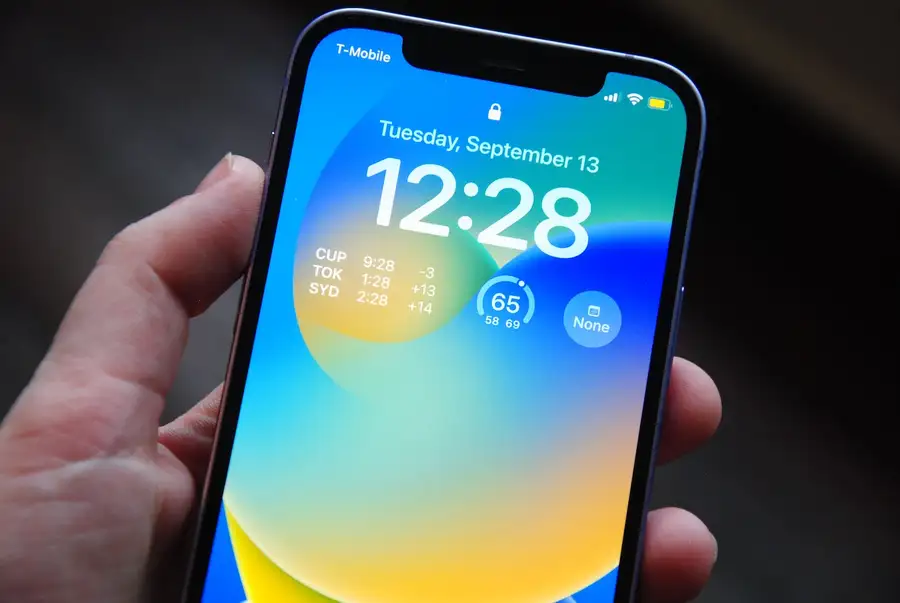
The best app to limit social media depends on what you need it to do. Blocking stops access, a pause interrupts an automatic opening, and a live timer makes an ongoing session visible. Those are different tools for different moments.
Disclosure: We make Sandflow. It is included here for live awareness, not presented as a substitute for an app blocker. This comparison uses Apple's documentation, developer websites, and US App Store listings checked on October 15, 2026. It is a documentation-based comparison, not a hands-on test of every app.
Quick Answer: Choose the Kind of Help You Need
- Start without another download: use Apple's built-in Screen Time limits and schedules.
- Block apps without a subscription: consider ScreenZen.
- Pause before opening a distracting app: consider one sec, which also offers paid blocking features.
- Block distractions across your phone and computer: consider Freedom.
- Keep session time visible while you scroll: consider Sandflow alongside your chosen limits.
If you keep overriding a daily limit, adding a visible timer may help you notice the session earlier. If you need an app to become unavailable, choose blocking rather than expecting a timer to enforce the boundary.
Blocking, Pauses, and Live Awareness Compared
Blocking restricts access according to a schedule, time allowance, or rule. A pause adds a decision before entry. Live awareness shows time passing while you are already using the app and leaves the decision to stop with you.
| iPhone option | Main approach | Setup and tradeoff | Best fit |
|---|---|---|---|
| Apple Screen Time | Limits and schedules | Configure in Settings; available controls depend on iOS version | A built-in starting point |
| ScreenZen | Delays, usage rules, and strict blocks | Select apps and configure rules; settings locks can add resistance to changes | Free configurable blocking |
| one sec | Breathing pauses; Pro adds strict block sessions | Configure interventions for chosen apps; the pause and strict blocking are different modes | Interrupting automatic openings |
| Freedom | App and website blocking sessions | Configure blocklists and sessions on each device; scheduling is paid | Phone and computer distractions |
| Sandflow | Live app-session timer | Create opening and closing Shortcuts automations; it does not block access | Seeing how long the current session lasts |
A label such as “strict” does not make an app impossible to bypass. Check the actual permissions, settings, and exceptions before relying on a boundary.
Current Prices and Free Features
Prices below are USD, checked October 15, 2026, for individual plans unless a product name says otherwise. App Store rows describe public purchase listings; Freedom's row describes its website offer. Regions, promotions, and in-app offers can differ, so confirm the billing period and total at purchase.
| Option and price source | Free offering | Listed paid options |
|---|---|---|
| Apple Screen Time | Included with iOS; no separate subscription | None for Screen Time itself |
| ScreenZen US App Store | Donation-supported app; no subscription | Optional tips: $5, $10, $20, or $40 |
| one sec US App Store | One target app with breathing and re-intervention | Pro: $6.99/month, $19.99/year, or $99.99 lifetime |
| Freedom website | Limited free features; website advertises a seven-day Premium trial | $8.99/month or $39.99/year; lifetime promotion advertised at $99.50 |
| Sandflow US App Store | Free download; Premium lists unlimited apps and customization | Plus Monthly: $3.99/month; Lifetime Plus: $49.99 |
Freedom's advertised $3.33/month annual equivalent is not a month-to-month subscription price: its annual plan is $39.99/year. ScreenZen's listed tips are donations, not a required premium subscription. Sandflow's App Store list also contains family products; those are not the individual options compared above.
Which iPhone Option Should You Try?
Apple Screen Time: Start With Built-In Limits
Use Screen Time if you want a starting point without another app. On iOS 26, look for App Limits and Downtime. Apple's iOS 27 instructions instead describe Time Allowances and Screen Time Schedule. Use the guide for your installed version rather than following labels from an older screenshot.
Apple documents how to set the periods when apps are available and how much use is allowed. It is a boundary tool; it is not Sandflow's selected-app session timer.
Sources: Apple's iOS 26 controls and iOS 27 allowances and schedules.
ScreenZen: Configurable Blocking Without a Subscription
ScreenZen's iPhone listing describes opening delays, short-use interruptions, app goals, scheduled blocks, and settings locks. Choose it if you want to experiment with rules without adding a subscription.
Its flexibility also means deciding which rules you will actually use. Start with a small set rather than configuring every distraction at once. The developer's site identifies ScreenZen as donation-supported; the US listing describes its iPhone features.
one sec: A Pause Before You Enter
one sec is a useful candidate when the problem starts with opening an app without thinking. Its free plan targets one app with a breathing intervention and re-intervention. Pro includes more apps, time tracking, website blocking, and strict block sessions.
Choose the mode deliberately: a breathing pause asks you to reconsider; a strict block session is a different intervention. See the developer's Free versus Pro comparison before assuming that every feature is included for free.
Freedom: Blocking Across Devices
Freedom supports iPhone app and website blocking as well as other platforms. Its Premium plan adds scheduling, recurring sessions, and Locked Mode. Consider it if avoiding Instagram on your phone simply sends you to a browser on your computer.
Set up the devices you actually use and review the platform differences. Freedom's pricing and platform table lists iOS support and shows that website exceptions are a desktop feature. Do not assume every desktop control is also available on iPhone.
Sandflow: Live Awareness Without Blocking
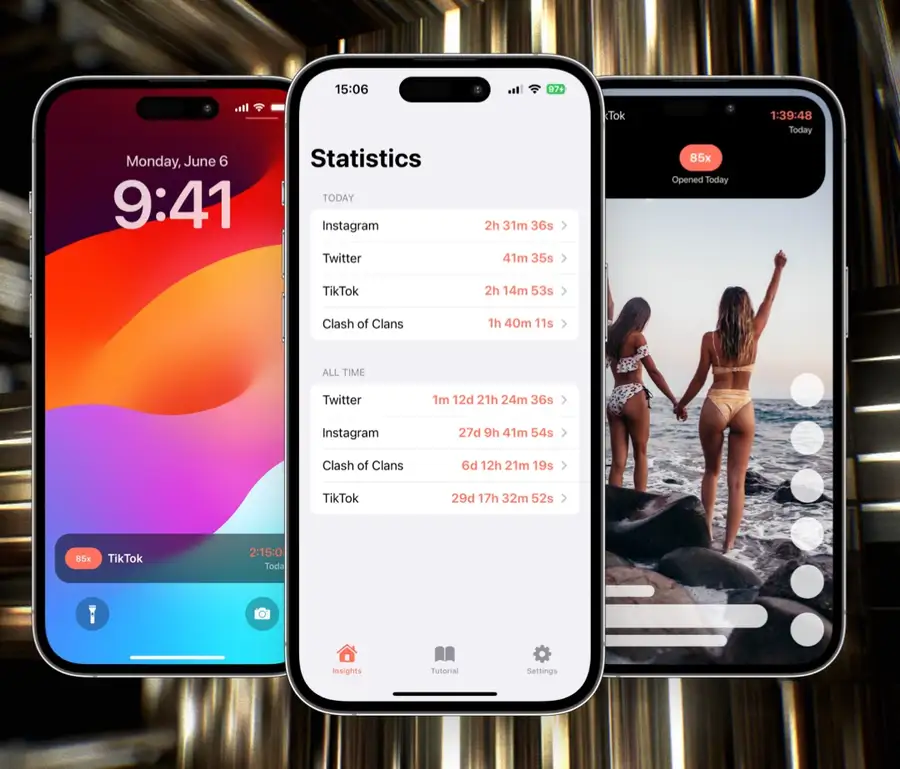
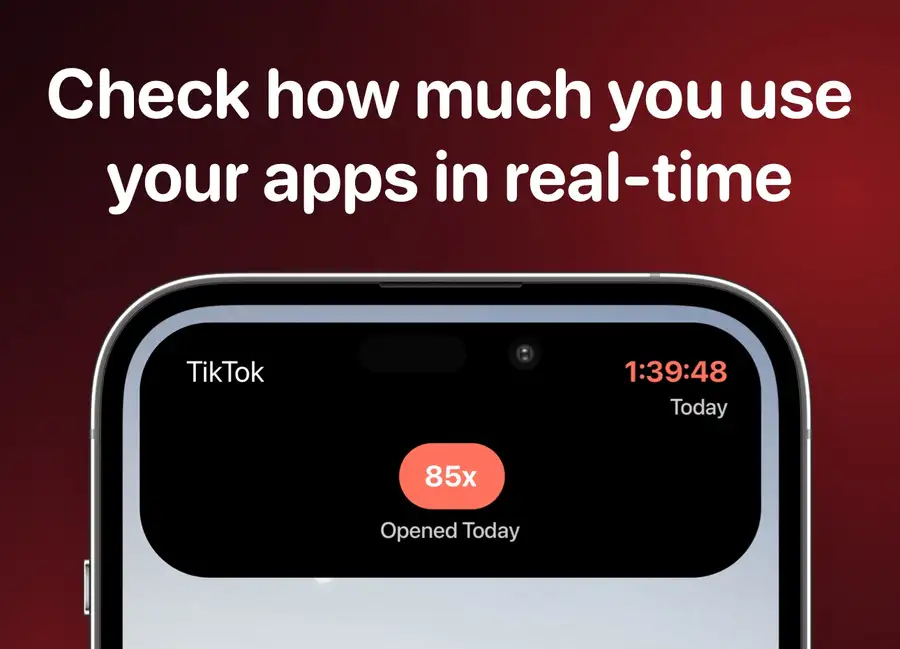
Sandflow is for the moment when a planned short visit becomes a long session. Its timer makes that session visible through Dynamic Island on supported iPhones and Live Activities. You remain free to keep scrolling; it does not enforce an access limit.
Setup is a real tradeoff. You need an opening automation and a closing automation for each selected app. Follow our version-specific setup instructions, then check that opening starts the timer and leaving stops it.
The Sandflow listing describes paid unlimited tracking and customization. Check the offer inside the app for the features available to your plan before subscribing.
Try One Change Before Paying for More Features
Start with the moment you want to change:
- If you need unavailable hours, configure a blocking schedule.
- If you keep opening one app automatically, try a pause on that app.
- If you lose track of time after opening it, try a live timer.
- After a week, compare the same app's usage over similar days. Decide whether the setup helped before adding more rules or apps.
Use our iPhone app-usage guide to find the report for your iOS version. A timer can complement a daily limit, but you do not need to install every app in this comparison.
If live awareness fits your goal, download Sandflow and start with one distracting app. If you need blocking, choose a blocking option first.