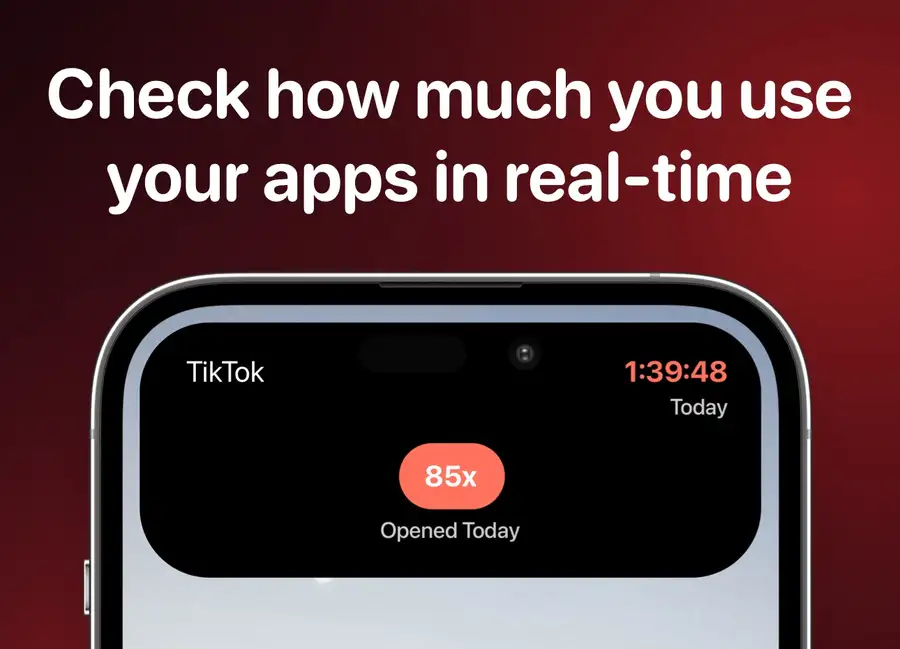
Screen Time helps you understand patterns in your app use. It is useful for questions such as “Which apps took most of my day?” A live session timer is more useful for “How long have I been scrolling right now?”
This guide explains those differences and the limits of usage history. Its Apple references were reviewed on October 15, 2026.
What Screen Time Reports Show
Apple documents app and website usage totals, daily and weekly views, pickups, and notifications. Those reports can help you decide where you want a different habit.
On iOS 27, open Settings > Screen Time > Daily Average. On iOS 26, open Settings > Screen Time > See All App & Website Activity. For the full walkthrough, use our guide to checking app usage on iPhone.
Apple provides separate current Screen Time instructions and iOS 26 instructions. Follow the version that matches your phone.
Can You See Exactly When an App Was Last Used?
Do not treat a Screen Time total as an exact “last opened” timestamp. Apple's documented summaries describe usage over periods, not a complete log of every opening and closing event.
Review the available Day and Week views and move through the history shown on your phone. There is no separate monthly-summary view in the cited instructions. Do not assume that a report contains activity from before reporting was enabled.
If your question requires an exact event time, these summaries alone are not enough to establish it.
Why Totals Can Need Context
Before acting on a number, ask what it represents:
- Which device? A shared report can combine activity from devices using the same Apple Account.
- Which period? Compare the same day or week when you assess a habit.
- Which activity? A daily total and the length of your current session are different measurements.
Check Share Across Devices and the report's device selection when a number seems surprising. Apple's version-specific guides explain the available controls.
A useful review is specific: “I want shorter evening Instagram sessions” gives you something to change and check. A large combined total by itself does not identify that next step.
Are Recent Apps or Battery Percentages a Usage History?
The App Switcher is for returning to apps. Its previews are not a record of time spent using each app. Apple also explains that an app can be suspended after you switch away, so a visible preview does not prove continuous activity. See Apple's switching guide.
Battery settings answer a different question: how apps contribute to battery consumption. A percentage does not establish an exact last-opened time or session duration. Use Apple's battery documentation for that screen.
What Sandflow Adds During a Session
We built Sandflow to make selected app sessions visible while they happen. You choose the apps and configure Shortcuts automations to start and stop their timers.
This is different from silently recording every app or reconstructing your entire past usage. The timer depends on your setup. It can appear through Dynamic Island on supported iPhones and through Live Activities.
Apple's Dynamic Island guide explains how that display presents ongoing activities. For Sandflow's setup, start with how it works and our Dynamic Island screen time guide.
For a Home Screen summary, use the complete iPhone Screen Time widget guide. It explains why widget totals and a live session timer are different.
Turn the Report Into One Small Change
Pick one app where your sessions often run longer than you intended. Use Screen Time to understand its daily pattern, then decide when a visible timer would help.
Try Sandflow for those selected sessions and review whether you stop closer to your intended time. Keep Apple's reports for the broader picture.
Download Sandflow on the App Store if you want that additional cue. You do not need to replace Screen Time to use it.