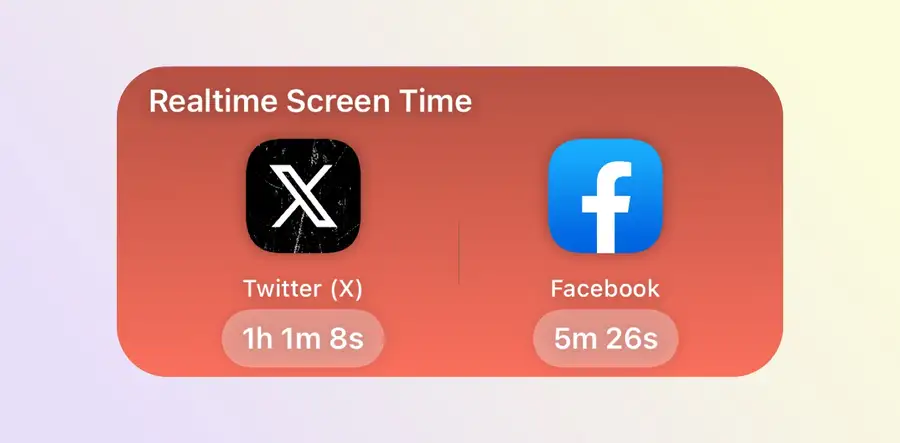
To add a Screen Time widget on iPhone, hold an empty area of the Home Screen, open Edit > Add Widget, search for Screen Time, and choose a size. Apple's widget is included with iOS; you do not need Sandflow to use it.
Use that widget for an overview. If you want selected-app statistics, Sandflow has its own Home Screen widget. If you want a timer visible while another app is open, that is a Live Activity, not a Home Screen widget.
Reviewed October 15, 2026: Apple steps follow its current iOS 27 documentation. Sandflow details were checked against the app's widget implementation. Older iOS versions can use different buttons, such as + instead of Edit > Add Widget.
Choose the Right Screen Time Display
| Display | What it is for | Setup required |
|---|---|---|
| Apple Screen Time widget | A summary of device use on the Home Screen | Enable App & Website Activity and add the widget |
| Sandflow Home Screen widget | Today's tracked time for selected apps; tap an app for its opens and time details | Configure tracking, add the medium widget, and choose its apps |
| Sandflow Live Activity | The current app-session timer on the Lock Screen and Dynamic Island on supported iPhones | Opening and closing Shortcuts automations plus Live Activities settings |
A Home Screen widget does not stay over Instagram or TikTok while you scroll. Use the Dynamic Island setup guide when that is the experience you want.
1. Turn On Apple's Screen Time Reporting
Open Settings > Screen Time. On iOS 27, open Manage Screen Time and turn on App & Website Activity if it is off. On iOS 26, look for App & Website Activity directly within Screen Time.
Reporting must be enabled before a summary can be useful. For version-specific report controls and device selection, follow our iPhone app-usage guide.
2. Add the Apple Screen Time Widget
- Go to the Home Screen page where you want the summary.
- Hold the background until the apps jiggle.
- Tap Edit > Add Widget. If your version shows +, use that to open the gallery.
- Search for Screen Time and tap its result.
- Swipe through the available sizes, then tap Add Widget.
- Move it into place and tap Done.
Start with enough space to read the information you care about. Apple's Screen Time guide identifies the Home Screen widget as a way to check device use; its widget guide documents adding, moving, and editing widgets.
3. Understand Which Usage You Are Seeing
Check the full Screen Time report if a number looks surprising. Share Across Devices can combine activity from devices using the same Apple Account. Confirm the period and device instead of treating every total as today's iPhone use.
Apple's reports and Sandflow's tracked sessions measure different scopes. Sandflow does not import every historical Screen Time entry, so the two totals should not be assumed to match.
Add and Configure Sandflow's Home Screen Widget
We make Sandflow. Its widget is an optional way to keep selected-app statistics visible, not a requirement for Apple's free widget.
- Install and open Sandflow on iOS 17 or later.
- Follow the opening and closing automation setup for the app you want to track.
- Return to the Home Screen and open the widget gallery.
- Search for Sandflow, select its medium usage widget, and add it.
- Hold the added widget and choose Edit Widget.
- Set First App and, if wanted, Second App, then close the editor.
- Record a short session and compare the selected app's statistics with Sandflow itself.
The current widget supports the medium Home Screen layout and up to two app selections. Its main view shows tracked time today. Tap a selected app to see its App Opens and Time Today details. Available tracking features depend on the plan shown in Sandflow.
This is an existing Sandflow product image. It illustrates Sandflow's widget, not Apple's Screen Time summary or the current iOS widget gallery.
Can You Put This Widget on the Lock Screen?
Do not assume a Home Screen widget also has a Lock Screen version. Apple's general widget instructions cover several surfaces, but each app determines which widget layouts it offers.
Sandflow's usage widget described here supports the Home Screen, not a Lock Screen widget slot. Its Lock Screen timer is a Live Activity. Follow the Live Activity setup and checks to configure that separately.
If the Widget Is Missing, Empty, or Not Updating
Screen Time is missing from the gallery
Check Settings > Screen Time, enable reporting, then reopen the widget gallery. Make sure you are searching the Home Screen gallery rather than expecting the same options in Lock Screen customization. Follow Apple's version-specific instructions if your controls differ.
Sandflow is missing or has no selected apps
Open Sandflow once after installation, then reopen the gallery. After adding its medium widget, use Edit Widget to select an app. A blank selection is not a tracked app.
Sandflow shows no time after using an app
Check the opening-and-closing verification steps. Both the trigger and stopwatch action must select the same app. Confirm the session appears inside Sandflow before diagnosing the widget display.
The widget is behind the app
Home Screen widgets are not guaranteed to refresh every second. Apple controls widget updates, and displayed information can lag. Compare the same app and period, then open Sandflow to check its recorded sessions. Do not repeatedly recreate tracking automations just to force a widget refresh.
For an ongoing session, use the Live Activity rather than expecting the summary widget to behave as a continuously running stopwatch. See Apple's widget update documentation.
The total includes another device
Review Share Across Devices and the selected device in Apple's Screen Time report. For the distinction between combined reports and selected app sessions, read what Screen Time history can tell you.
Edit, Move, or Remove a Widget
Hold a widget to find the available editing or removal controls. Edit Widget changes supported selections; to choose another size, use the size options your iOS version offers or remove and re-add it. Removing a widget removes that display; it is not the same as deleting the app.
Keep one summary where you will notice it. If you need awareness during an app session, use our guide to showing screen time in Dynamic Island rather than adding more Home Screen widgets.